How to Use Advanced WordPress Security Features to Protect Your Website


You face real risks when you run a WordPress site today. Attackers target about 1 in 25 sites, and over 90,000 attacks hit WordPress every minute. Many threats come from outdated plugins or weak passwords, making immediate action critical.
WordPress Security demands more than basics. You can protect your site by using advanced features and staying alert to new threats.
Key Takeaways
Enable automatic updates and remove unused plugins to keep your WordPress site safe from common attacks.
Choose trusted security plugins with firewalls and real-time threat detection to block hackers and malware.
Use strong passwords and two-factor authentication to protect your login and prevent unauthorized access.
Pick a secure hosting provider with features like SSL, malware scanning, and DDoS protection for better defense.
Schedule automated backups and run regular security scans to quickly recover from problems and spot risks early.
Updates and Maintenance
Automatic Updates
You can greatly reduce your risk of cyber-attacks by enabling automatic updates for your WordPress site. Outdated plugins, themes, and core files often contain unpatched vulnerabilities that attackers target. Regular updates and maintenance help prevent malware infections, website defacement, and even SEO penalties. Maintenance plans that automate updates, backups, and security scans lower the risk of data breaches and downtime, which can damage your reputation and finances.
According to a 2024 WordPress security survey, only 30% of users concerned about plugin or theme security have enabled automatic updates. This means most sites miss out on the security benefits of automatic updates. By turning on this feature, you ensure your site receives critical patches as soon as they become available.
Removing Unused Plugins and Themes
Unused plugins and themes create unnecessary risks for your website. Statistics show that about 90% of WordPress vulnerabilities come from plugins, while 6% come from themes. Only 4% originate from the core software. In 2024, 827 plugins and themes were reported as abandoned, which means they no longer receive security updates. Removing these unmaintained components reduces your attack surface and helps keep your site secure.
Delete plugins and themes you no longer use.
Regularly review your installed components.
Limit the number of plugins to only those essential for your site’s function.
Trusted Sources
Always install plugins and themes from trusted sources. Vet developers by checking compatibility, update frequency, user reviews, and reputation.
The official WordPress directories provide verified information, such as update history, developer background, user ratings, and active installations.
Only use plugins and themes from reputable developers to reduce security risks.
The number of active installations and star ratings can help you judge reliability.
The developer’s name, shown under the plugin title, helps you identify trustworthy sources, like Automattic for Jetpack plugins.
By following these steps, you strengthen your WordPress Security and protect your site from common threats.
WordPress Security Plugins
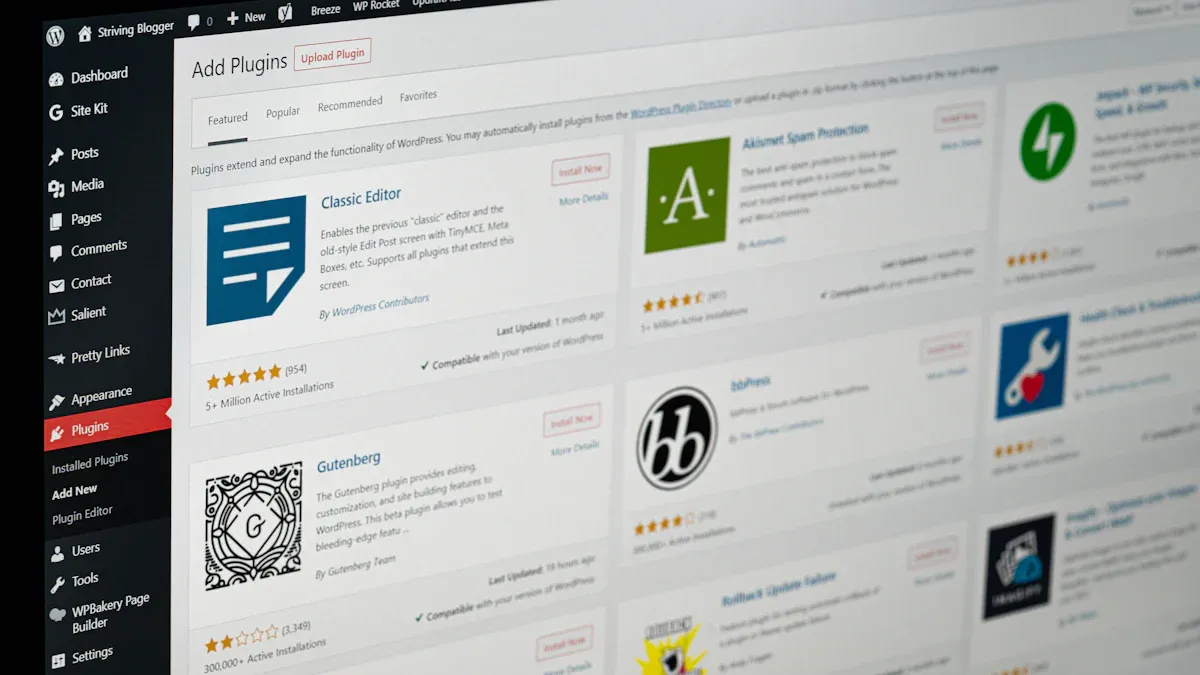
Choosing the right security plugin gives you a strong foundation for defending your WordPress site. You can rely on trusted solutions like Wordfence, Sucuri, and iThemes Security. These plugins offer a range of advanced features, including firewalls, malware scanning, brute force protection, and file integrity monitoring. The table below compares their popularity, ratings, and pricing to help you make an informed decision:
Plugin | Active Installations | WP Rating | Free Version | Premium Pricing Range |
|---|---|---|---|---|
Sucuri | 800,000+ | 4.2 | Yes | $199.99 - $499/year |
Wordfence | 60,000+ | 4.1 | Yes | $199 - $950/year |
iThemes Security | 50,000+ | 5.0 | Yes | $99 - $499/year |
Firewall Protection
A firewall acts as your website’s first line of defense. You can block malicious traffic before it reaches your site. Plugins like Wordfence and Sucuri provide endpoint firewalls that inspect every request. These firewalls filter out suspicious activity, such as SQL injections and cross-site scripting attempts. You also benefit from features like IP blacklisting and country blocking, which help reduce unwanted visitors.
Tip: Enable your firewall’s learning mode for a few days after installation. This helps the plugin understand your site’s normal traffic patterns and reduces false positives.
The impact of firewall solutions is clear. Over 2 million WordPress sites use firewalls for protection. This widespread adoption shows their effectiveness in reducing hacking attempts.
Real-Time Threat Detection
Real-time threat detection gives you the ability to spot and stop attacks as they happen. Modern plugins use artificial intelligence (AI) and machine learning to analyze traffic patterns and user behavior. This technology helps you detect threats like brute force attacks, DDoS attempts, and unauthorized access.
AI-powered firewalls block malicious activities by learning from new threats.
Malware scanners identify harmful scripts in plugins, themes, and core files.
Intrusion Detection Systems (IDS) monitor your site for unusual activity and alert you to possible breaches.
Real-time monitoring provides 24/7 protection, reducing downtime and data loss.
AI-driven security solutions also boost customer trust and improve your site’s SEO. They adapt quickly to new threats, offering a level of protection that manual methods cannot match.
Brute Force Protection
Brute force attacks target your login page by trying thousands of password combinations. You can stop these attacks with features like login attempt limits, IP banning, and two-factor authentication. Security plugins make it easy to set up these defenses.
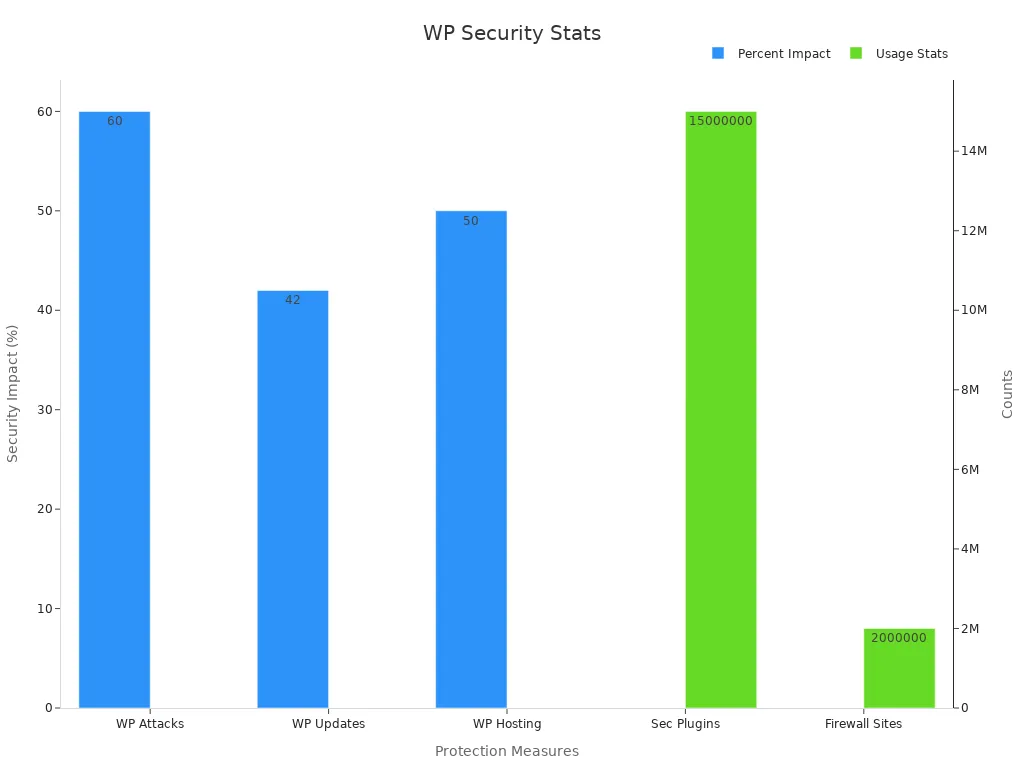
Protection Measure | Statistical Impact on Security |
|---|---|
Surge in brute force attacks on WordPress | 60% increase in attacks, highlighting the threat level |
Regular updates of WordPress core/plugins | 42% lower likelihood of site compromise |
Secure WordPress hosting | 50% fewer hacking attempts |
Use of security plugins (e.g., Wordfence) | Over 15 million downloads indicating widespread use |
Use of firewall solutions (e.g., Cloudflare) | Over 2 million WordPress sites protected by firewalls |
You can further strengthen your site by changing the default login URL, disabling XML-RPC, and enforcing strong passwords. These steps make it much harder for attackers to gain access.
Note: Brute force protection is not just about blocking login attempts. It also involves monitoring for repeated attacks and responding quickly to new threats.
By using advanced plugins and enabling their key features, you take control of your WordPress Security. You reduce your risk of cyber incidents and keep your website safe for visitors.
Authentication and Access Control
Two-Factor Authentication
You can add a powerful layer of defense to your site by enabling two-factor authentication (2FA) for all users, especially administrators and editors. 2FA requires you to provide two forms of verification, such as a password and a code sent to your phone or email. This extra step makes it extremely difficult for hackers to access your site, even if they have your password. Two-factor authentication blocks most brute-force attacks and keeps sensitive data safe. Sites that handle customer information or run e-commerce operations benefit the most from this added protection.
Strong Passwords
You should enforce strong password policies for every user account. Experts recommend passwords with at least 12 characters, mixing uppercase and lowercase letters, numbers, and special symbols. Weak or common passwords make your site an easy target for hackers. Combining strong passwords with 2FA and limiting login attempts creates a solid barrier against unauthorized access. Changing the default "admin" username also helps prevent attackers from guessing your login credentials.
User Roles
WordPress uses a role-based access control system. Each user role, such as Administrator, Editor, Author, Contributor, or Subscriber, has specific permissions. Assigning the right role to each user limits what they can do on your site. This approach reduces the risk of unauthorized actions and keeps your site secure. Customizing roles with plugins lets you fine-tune permissions for your needs. Regularly audit user roles and avoid sharing credentials to maintain a secure environment.
Implement 2FA for all users, especially those with high-level access.
Apply the principle of least privilege by granting only necessary permissions.
Safelists and Blocklists
You can further protect your admin area by setting up safelists and blocklists. Safelists allow only trusted IP addresses to access your login page, while blocklists deny access to known malicious IPs. This method stops unauthorized users before they even reach your site’s login screen. Limiting login attempts and monitoring user activity with plugins like WP Activity Log also strengthens your WordPress Security.
Secure Hosting and Encryption
Secure Hosting
You should choose a secure hosting provider as your first step in protecting your website. Managed WordPress hosts like Pressable and WordPress.com offer advanced security features that go beyond basic hosting. These providers use enterprise-grade tools such as DDoS protection, web application firewalls, and real-time malware scanning. They also provide automatic updates and daily backups, which help you recover quickly if something goes wrong.
Secure hosts use SFTP instead of FTP, so your data transfers stay encrypted.
Isolated server environments prevent one compromised site from affecting others.
Automated update workflows and staging environments let you test changes safely.
Security Feature | Description and Impact on Security Incidents |
|---|---|
Blocks harmful traffic and reduces attack surface. | |
Malware Scanning & Automatic Removal | Detects and cleans malware, minimizing manual work. |
DDoS Protection & Traffic Filtering | Stops fake traffic and keeps your site online. |
Automatic Updates & Patch Management | Applies security patches quickly and safely. |
Managed hosting also supports the latest PHP versions, which improves both performance and security. Providers guarantee high uptime, usually 99.9% or higher, so your site stays available and secure.
SSL Certificates
SSL certificates encrypt the data sent between your website and your visitors. This encryption protects sensitive information like passwords and payment details from hackers. Most secure hosting providers include SSL certificates and handle renewals for you. When you use SSL, your site displays a padlock icon in browsers, which builds trust with your visitors.
Metric Description | Numerical Value |
|---|---|
Percentage of attacks from insecure passwords | |
Number of attacks on WordPress sites per minute | Approximately 90,000 |
Average global cost of a data breach | USD 3.86 million |
Tip: Always check that your SSL certificate is active and up to date. This simple step can prevent many common attacks.
File Permissions
You can control who accesses your website files by setting proper file permissions. Secure file permissions stop unauthorized users from editing or deleting important files. Managed hosts often disable file editing from the WordPress dashboard and limit login attempts to reduce risks. Use SFTP for file transfers to keep your credentials safe. Regularly review your file permissions and update them as needed.
Set directories to 755 and files to 644 permissions.
Avoid giving write access to everyone.
Remove unused files and plugins to shrink your attack surface.
By following these steps, you create a strong foundation for your website’s security.
Backups and Monitoring
Automated Backups
You protect your website best when you schedule automated backups. Backups let you recover quickly from server crashes, accidental deletions, or hacking attempts. Many experts recommend daily database backups and weekly full site backups. High-traffic sites benefit from even more frequent backups. You should store backups in multiple locations, such as cloud storage and local drives, to follow the 3-2-1 backup rule. This means you keep three copies, on two types of media, with one copy off-site. Automated backup plugins help you schedule, verify, and test your backups. They also alert you if a backup fails. Cloud storage options like Amazon S3 offer high durability, so your data stays safe. Regular testing ensures your backups work when you need them. For example, one e-commerce site restored its checkout process within minutes after a cyberattack, preventing major revenue loss. This shows how automated backups minimize downtime and protect your business.
Tip: Always encrypt your backups and test restoring them in a staging environment each month.
Security Scans
You strengthen your defenses by running regular security scans. Scans detect malware, suspicious code, and vulnerabilities in your WordPress core, plugins, and themes. Security plugins like Wordfence and Cloudflare provide real-time monitoring and malware scanning. These tools alert you to threats before they cause damage. You can use file integrity monitoring to track unauthorized changes. Scans also help you find outdated software and weak passwords. When you scan your site, you identify risks early and fix them before attackers exploit them.
Malware scanning removes harmful code and protects your site’s integrity.
Security scans reveal vulnerabilities such as SQL injection and cross-site scripting.
File integrity monitoring detects unauthorized file changes.
Security Audits
You gain deeper insight into your website’s safety with regular security audits. Audits review your WordPress core, plugins, themes, and user accounts for weaknesses. They help you spot outdated software, insecure permissions, and plugin vulnerabilities. After an incident, audits analyze how attackers gained access, so you can prevent future breaches. Regular audits reduce your risk of being hacked by up to 50%. They also save money by lowering emergency support costs and preventing data breaches, which can exceed $25,000 for small businesses.
Benefit | Quantitative Data / Example |
|---|---|
Exceeds $25,000 | |
Conversion increase after audit-driven speed optimizations | 18% increase in conversions |
Traffic loss prevented by audits | 60% traffic loss overnight avoided |
Emergency support cost reduction | From $15,000 to $0 over two years with $2,000/year audit investment |
Risk reduction of being hacked | Regular audits can cut hacking risk by 50% |
You build a strong WordPress Security strategy when you combine automated backups, regular scans, and thorough audits. This approach keeps your site resilient against evolving threats.
You now have the tools to protect your site from modern threats. Use automatic updates, strong authentication, secure hosting, and regular backups to keep your website safe. Stay alert for new risks and review your security settings often. Take action today to build a safer online presence. Your commitment to security helps your site grow and thrive.
FAQ
How often should you update your WordPress plugins and themes?
You should check for updates at least once a week. Enable automatic updates for critical plugins and themes. This habit helps you patch vulnerabilities quickly and keeps your site secure.
What is the best way to choose a WordPress security plugin?
Look for plugins with high ratings, frequent updates, and strong user reviews. Trusted options include Wordfence, Sucuri, and iThemes Security.
Tip: Always test new plugins on a staging site before using them live.
Can you recover your site if it gets hacked?
Yes, you can restore your site using recent backups.
Keep automated backups stored in multiple locations.
Test your backups regularly to ensure they work.
Does SSL protect your WordPress site from all threats?
SSL encrypts data between your site and visitors. It does not stop malware, brute force attacks, or plugin vulnerabilities.
You still need firewalls, strong passwords, and regular security scans for full protection.
